Why most AI images don’t work for social posts
Ask a general image tool for “a post for our salon” and you get something polished and generic: a stock-looking interior, a palette that is nobody’s brand, and, if you asked for text, letters that almost spell words. None of that is the model failing. It is the brief. A designer asked for “a post for our salon” would come back with questions - what is it announcing, what are the prices, what are your colours, where does the logo go - and the AI needs the same answers. Everything in this post is about giving it them.
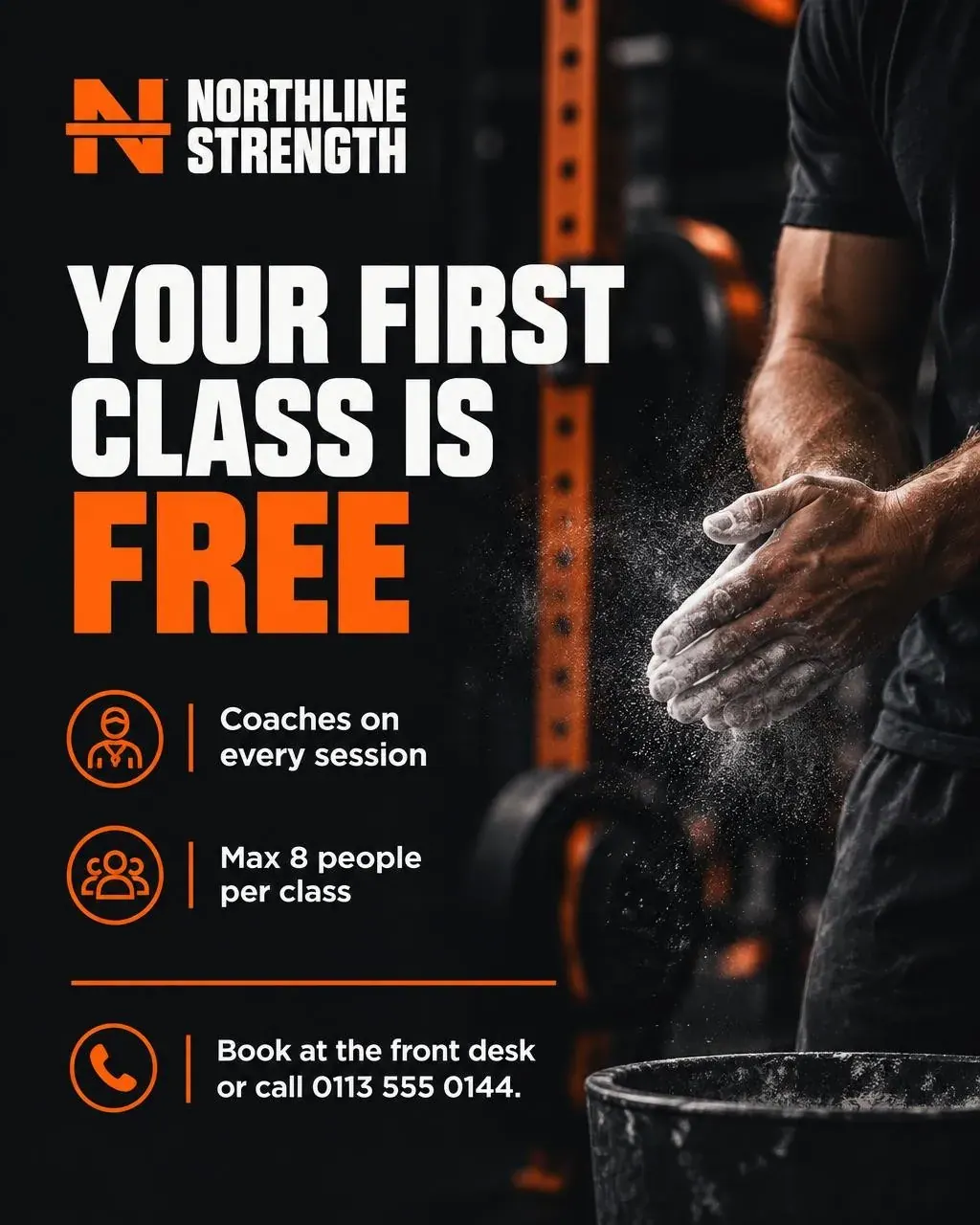
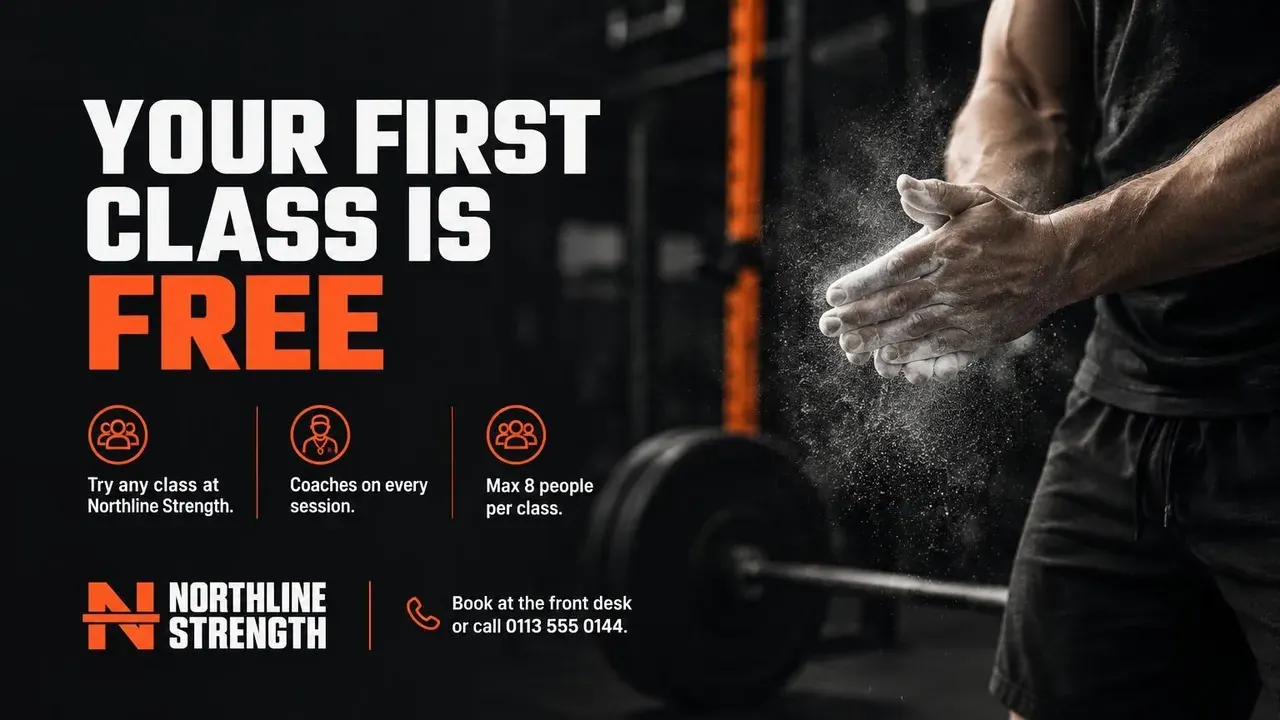
- Every image below was made with Media Agent in Fluxi for one of four businesses we made up to test it: a salon in York, a gym in Leeds, an estate agent in Harrogate and a bakery in Whitby
- Nothing was retouched; the prompts quoted are the ones that were typed
First decide: photo or graphic
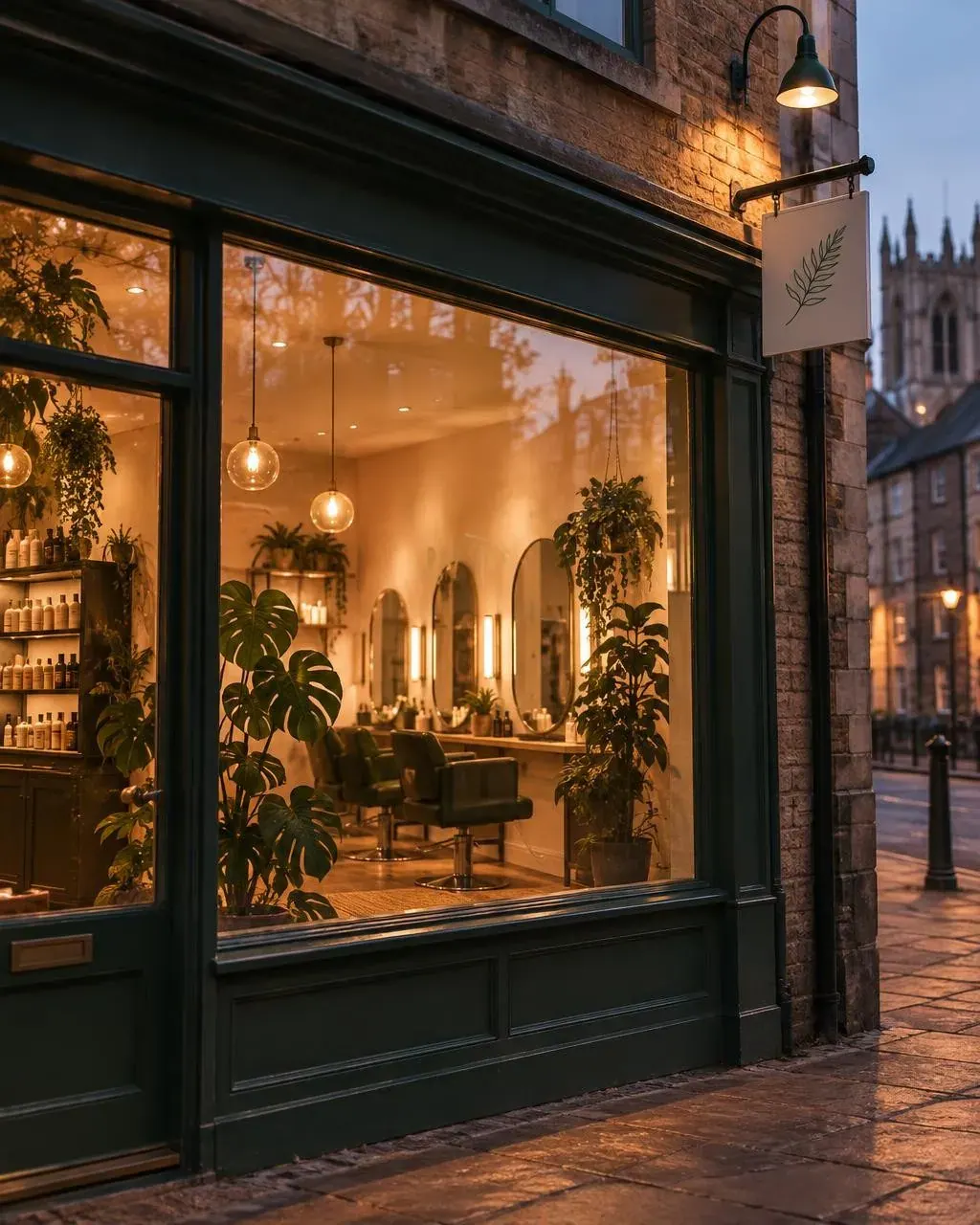
A photo shows a scene and carries the message in the caption. A graphic is designed: it has lettering, a layout and usually your logo, and it carries the message on its own - which matters on Instagram and Facebook, where people scroll past captions. The same brief can go either way. Use a photo when the moment is the point (today’s bake, the room, the view) and a graphic when the information is (the hours, the price, the date).

Put the real details in the prompt
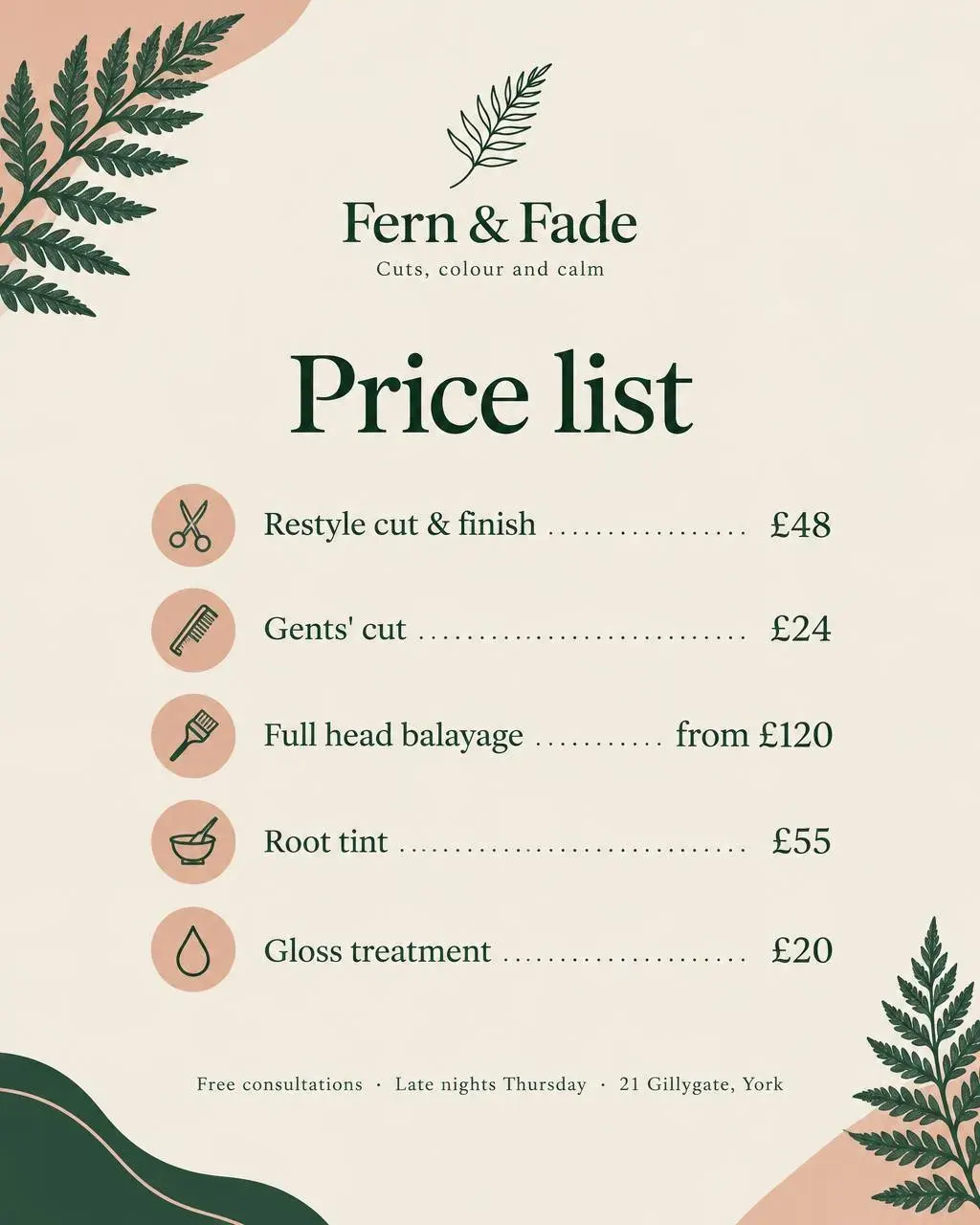
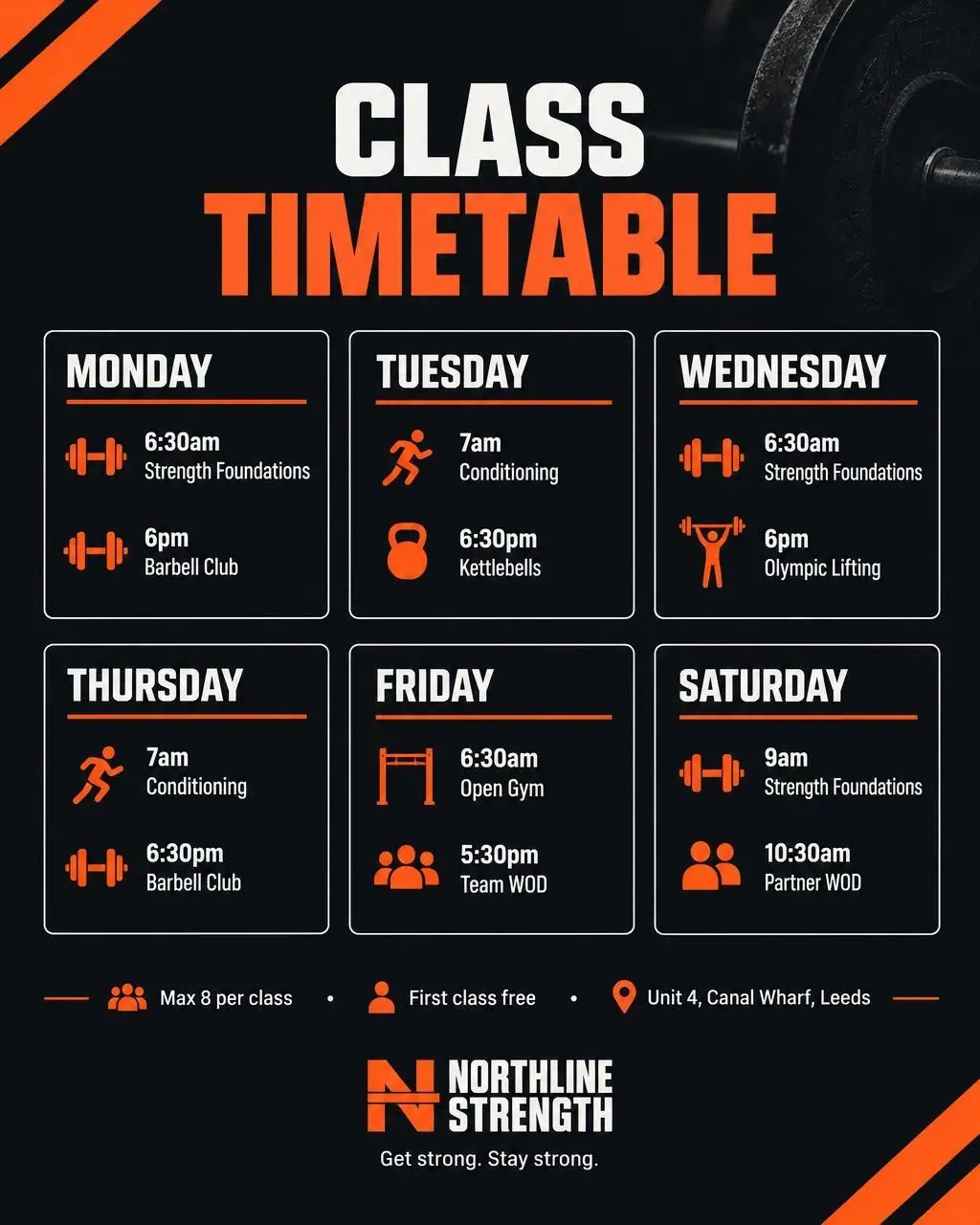
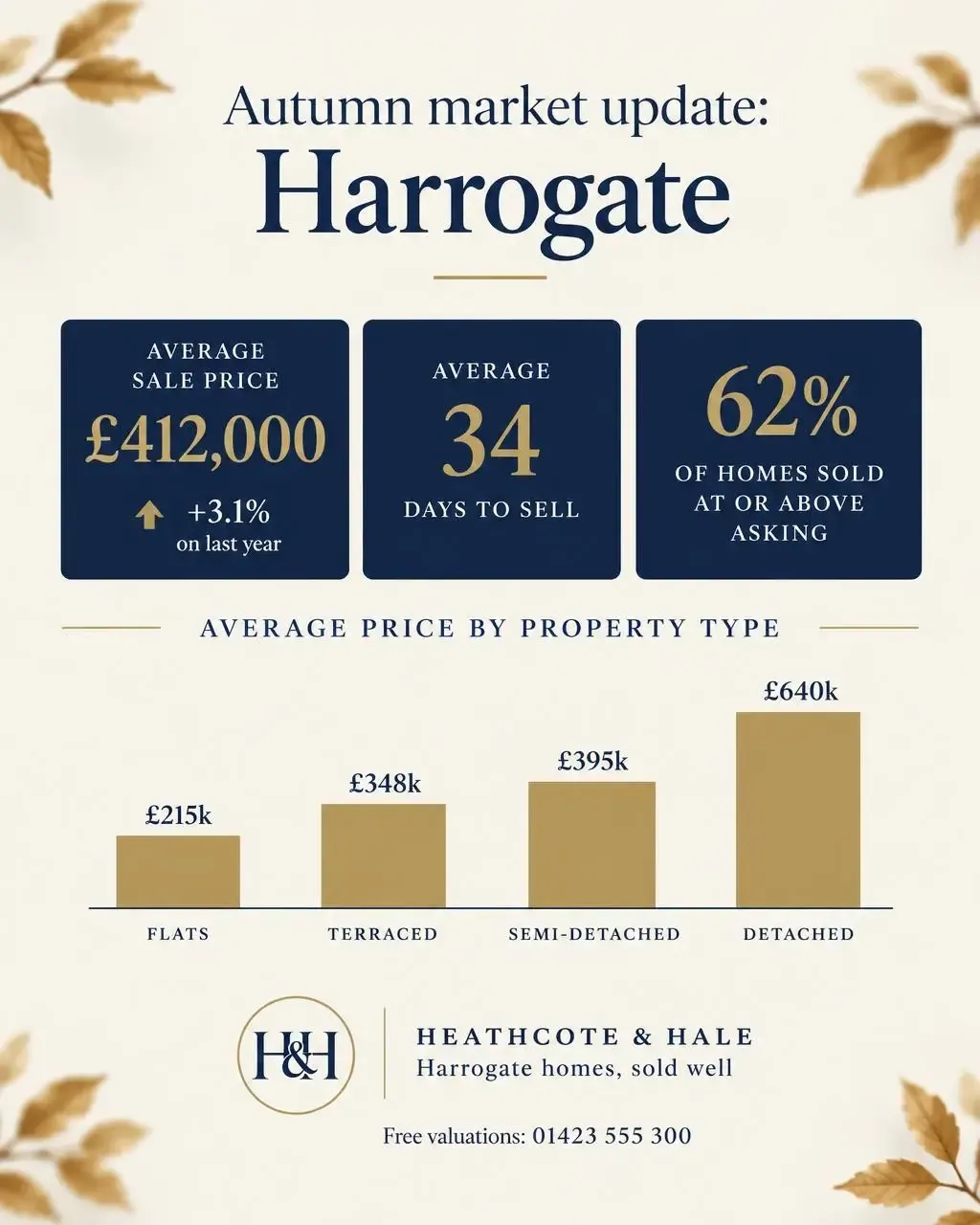
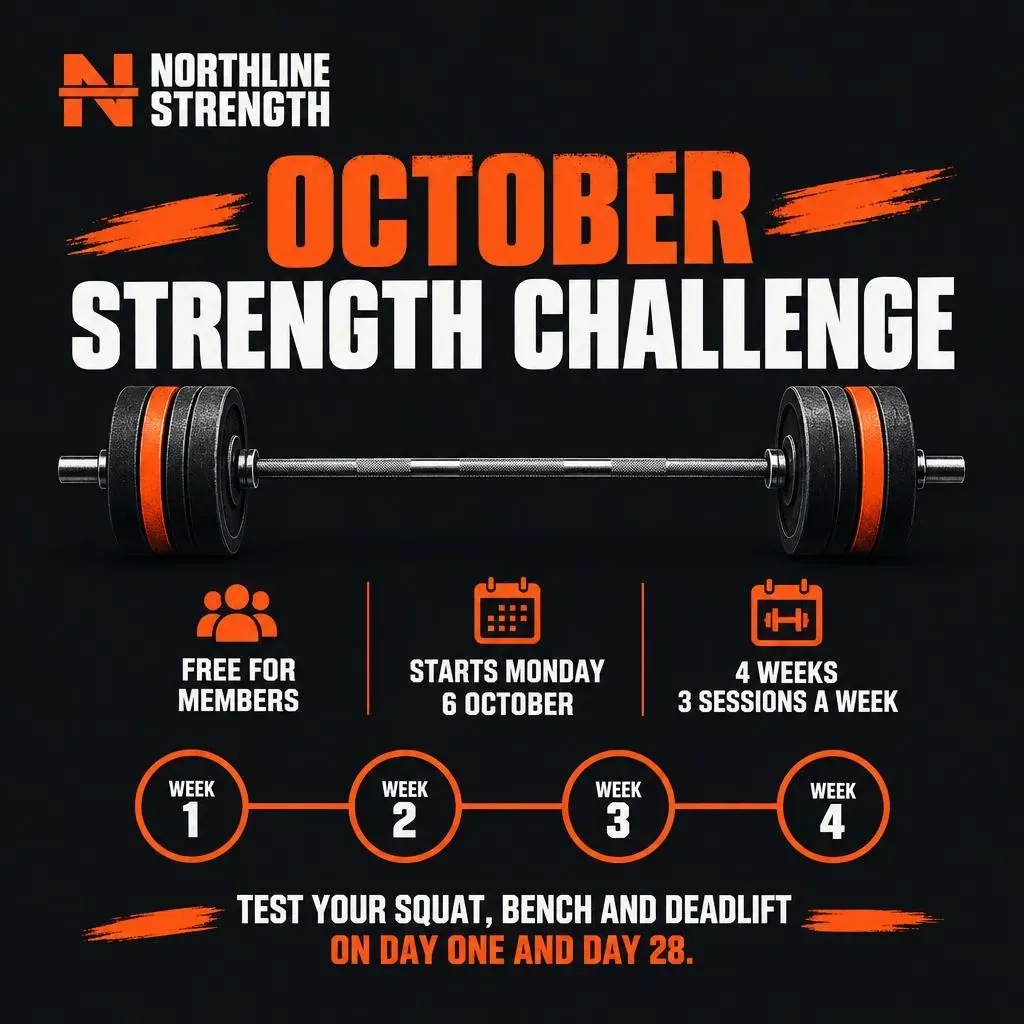
The single biggest change in image models is that they can now set text reliably, so a graphic can carry real information: prices with dotted leaders, a week of class times, the bedrooms and the EPC rating. To get it, write every word and number you want on the image into the prompt, exactly as it should appear. Ask for icons by name (“a small scissors icon beside each service”) and say how it should be laid out (“one row per day”). Vague asks get decorative results; specific ones get useful ones.
Proof it like you would proof print
Models are much better at text than they were, not perfect. Treat every graphic as a proof from a designer: read every number and every word, letter by letter, before it goes out. The things that slip are predictable.
- Prices and phone numbers - a transposed digit is easy to miss and expensive to post
- Dates and days of the week - check that “Saturday 18 October” really is a Saturday
- Small print - footers and fine type are where letters go wrong first
- Anything that changed since you wrote the prompt
Use your brand colours, and place the logo rather than redraw it
Give the model your colours by name or hex code and say how to use them (“navy and gold”, “near-black and safety orange”). For the logo, the right approach is to place your actual logo file on the image, not to ask the model to draw it - a redrawn logo is always subtly wrong. In Fluxi, the colours come from your business profile automatically and the Use logo option places your logo file once, exactly as it is.
Start from your own photos
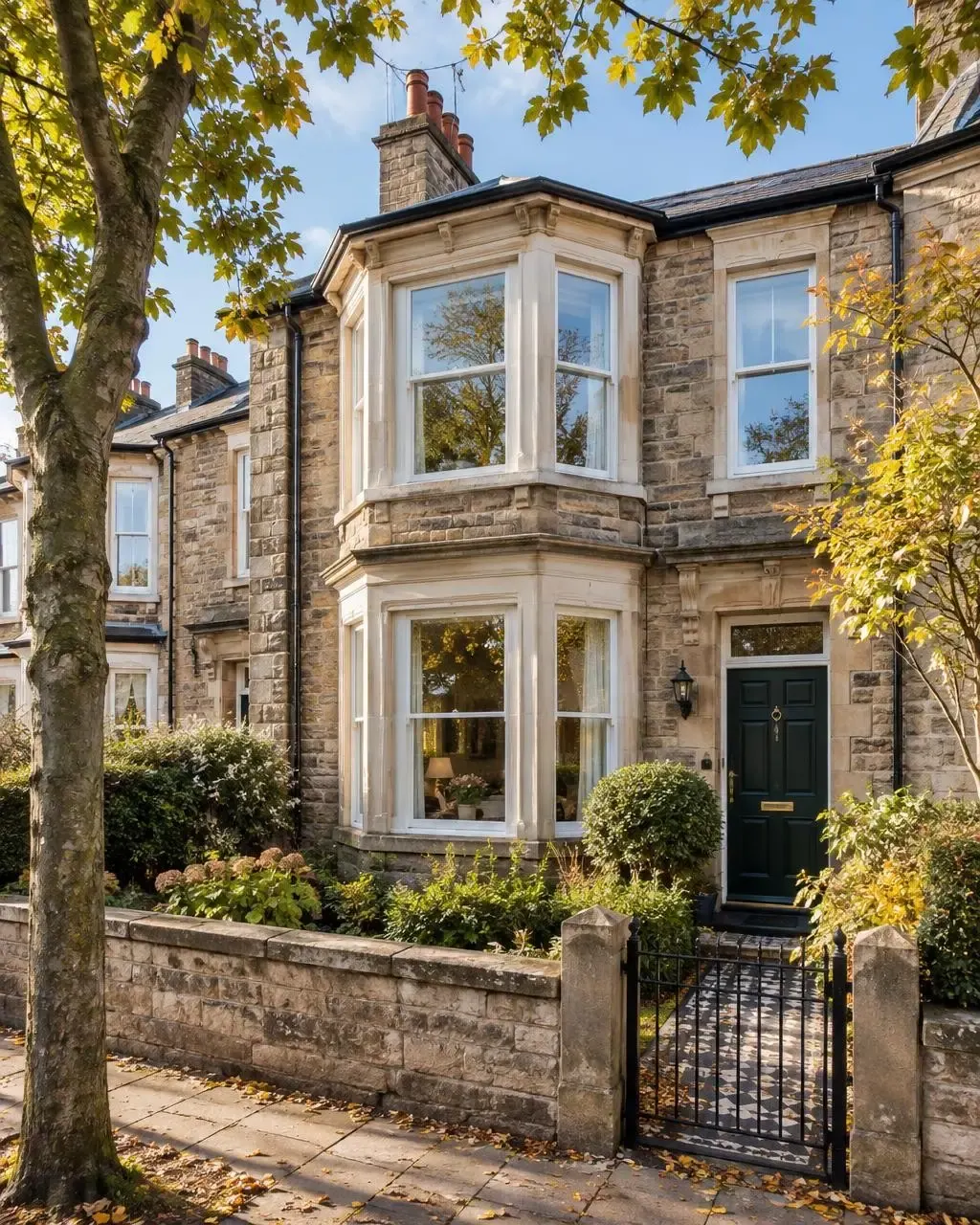
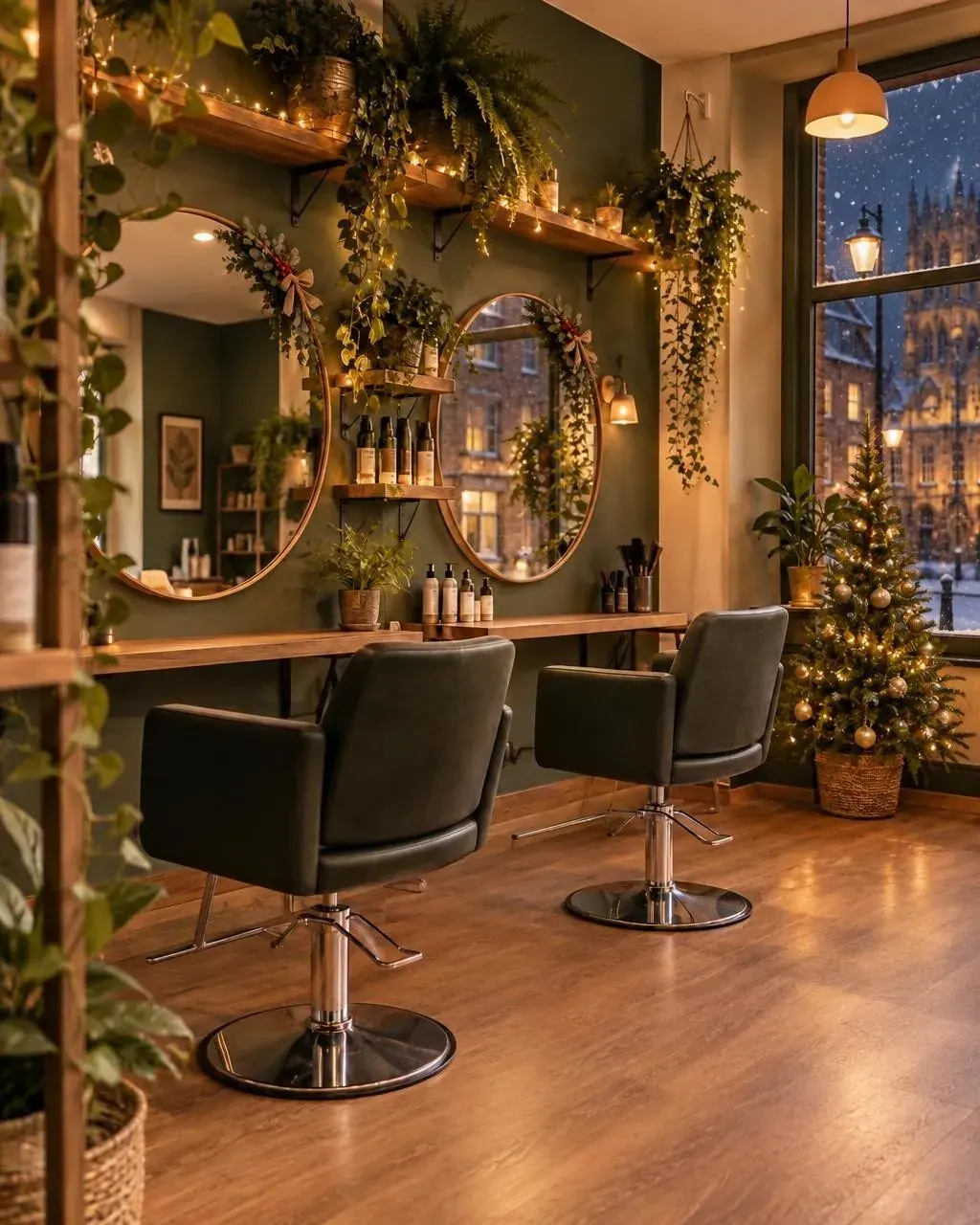
Some of the most useful AI image work is editing, not inventing. Start from a photo you already have and describe the change: turn a listing photo into a “Just listed” card, take the room you shot in summer into December, or change one word and keep everything else. Say what must stay the same as clearly as what should change. Editing keeps the post honest, too - it is your real shop, your real product, your real house. (The house below is AI-made only because the agent is fictional; with a real listing you would start from your own photo.)


Ask for several takes and pick one
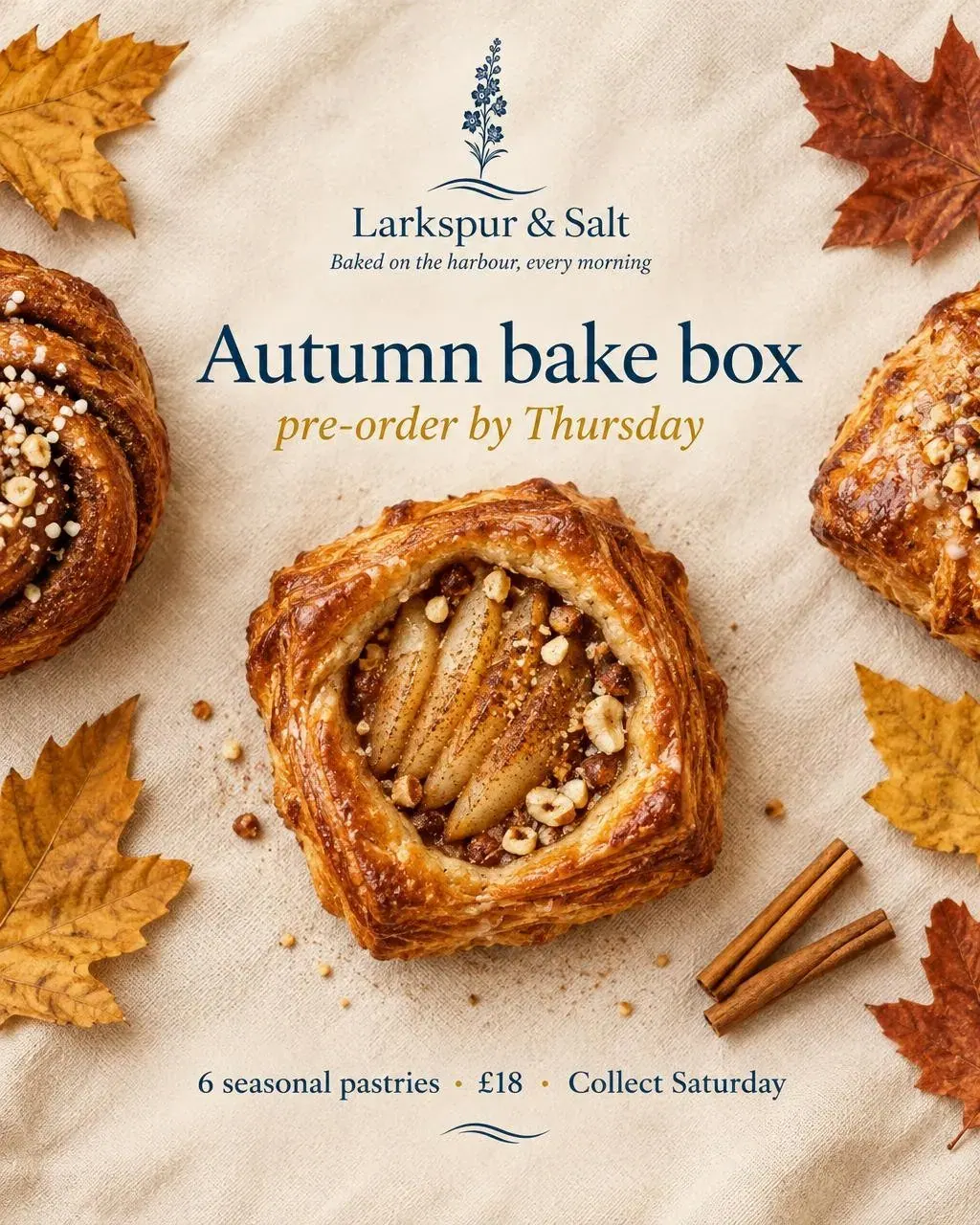
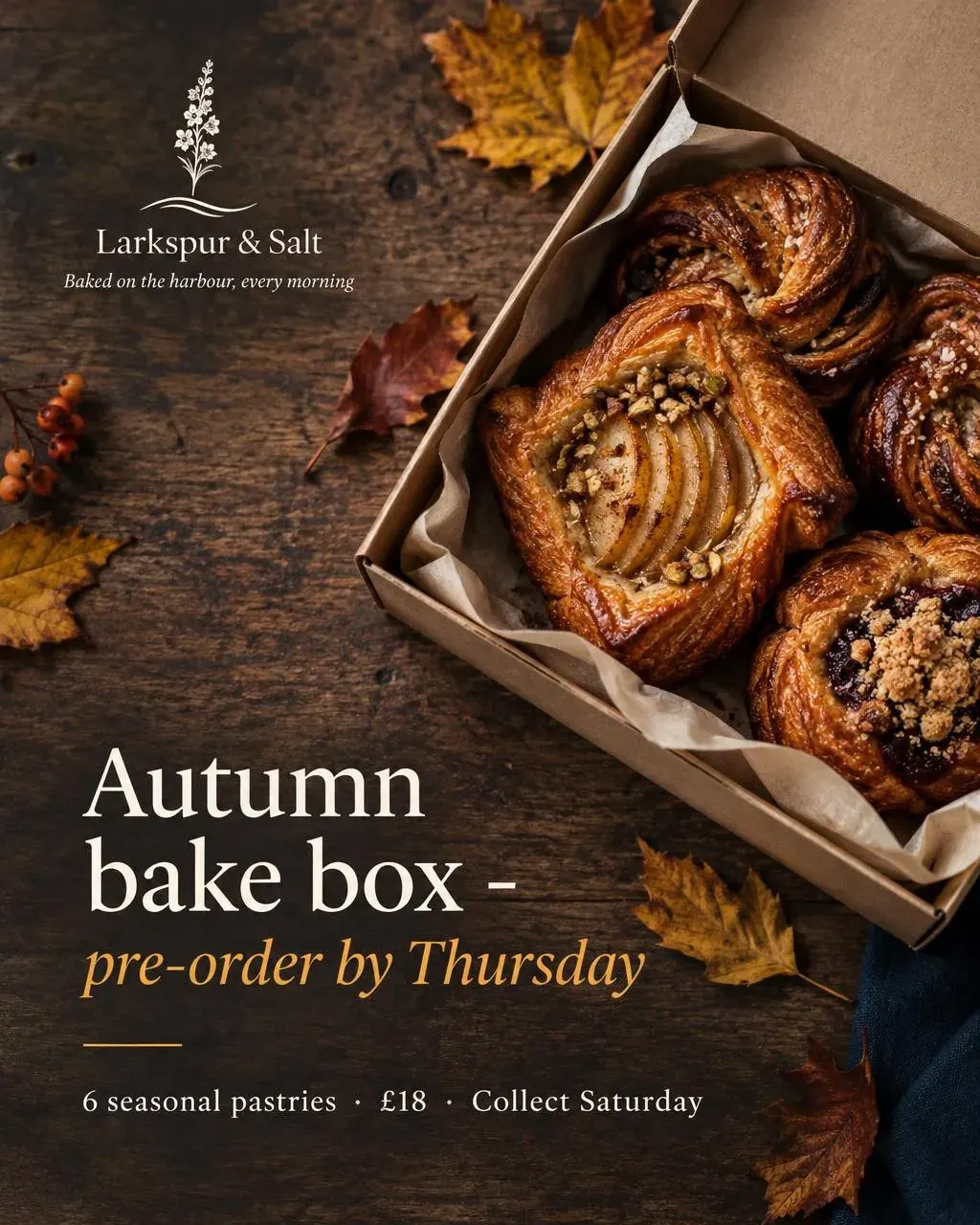
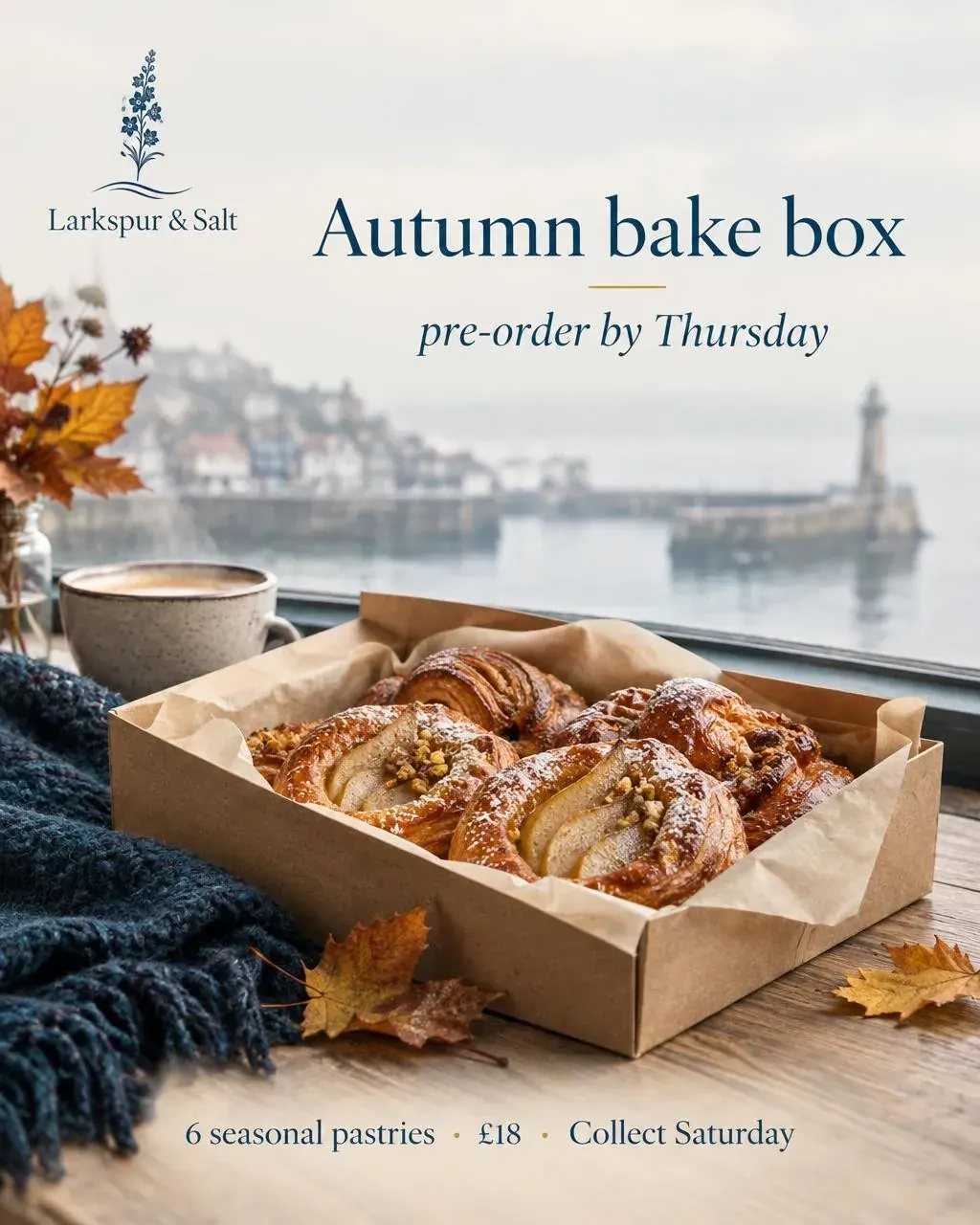
A designer would show you a few routes, and the AI can do the same. Rather than regenerating the same prompt and hoping, ask for several versions that deliberately differ - one as described, others with a different layout, angle or mood - and choose. In Fluxi, setting Images to 4 does this: it decides how each take should differ, writes that direction under it, and draws them at the same time.
Make it the right shape for each network
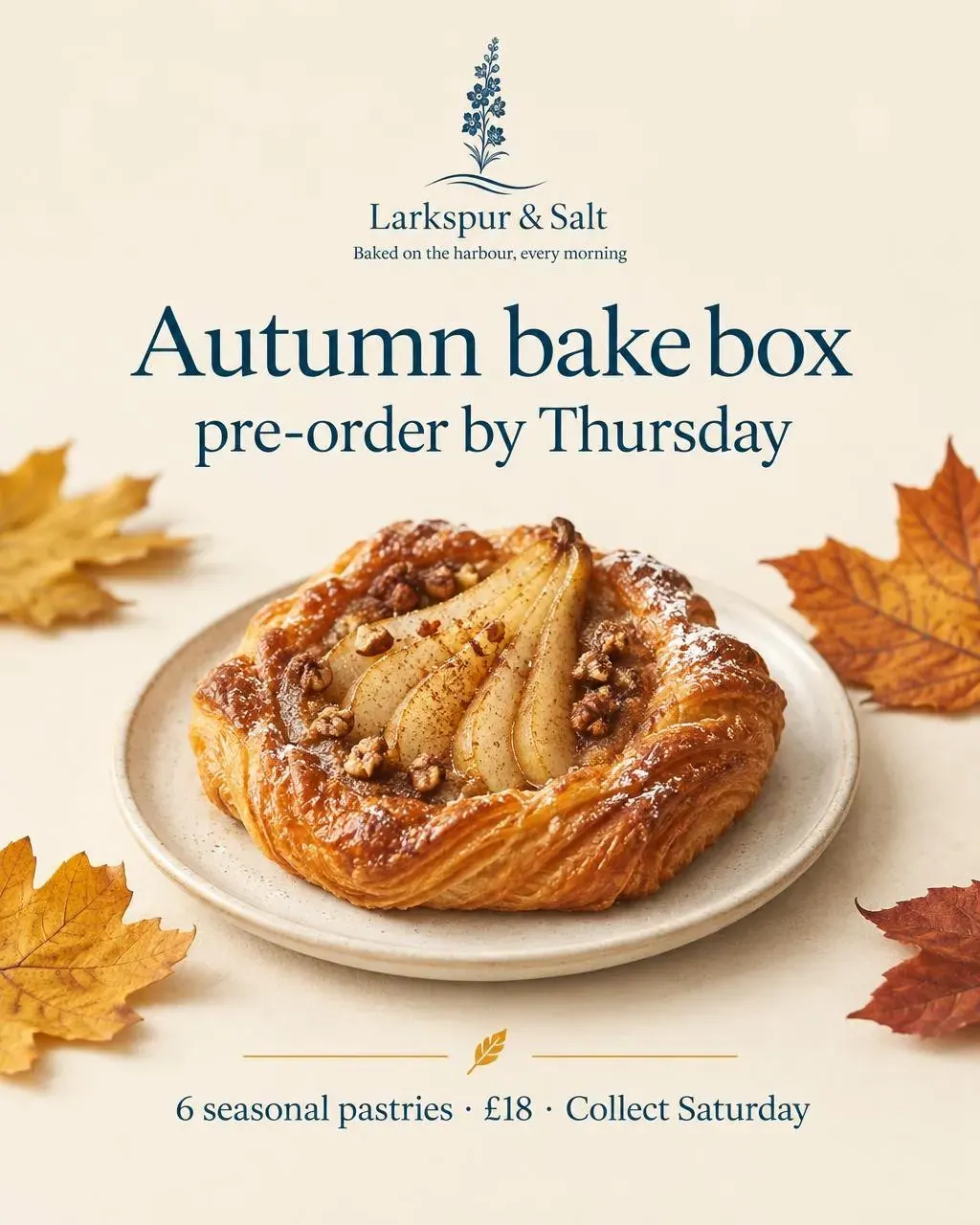
The same graphic needs different shapes in different places: 4:5 portrait fills the most screen on Instagram, Facebook and Threads; 16:9 sits naturally on X, LinkedIn and Bluesky; 9:16 is for Stories, TikTok and Shorts. Cropping a finished graphic to another shape usually cuts the words, so make each shape from the brief instead. Our free social media image sizes guide lists every size if you are doing it by hand.
Where Fluxi fits
Media Agent is a tab beside the post you are writing in Fluxi. It knows the brand colours and logo from your business profile, picks the right shape for the network, can illustrate the post you have already written if you leave the prompt empty, and edits images from your media library. Each image uses 10 AI credits from the same allowance as AI Agent, and every saved image gets free AI alt text. The free trial includes 50 credits, enough for a few batches.